Noob, Noobie, Newb, Greenie, Rookie, Beginner… I still find it hard at times NOT to think of myself with one of those labels when it comes to code. More and more, though, I’m seeing that I’ve graduated from Total Noob to Intermediate.
Now, before I get ahead of myself, I’m still very much an infant when it comes to higher level coding. For the most part, though, I’ve moved beyond the absolute basics, and feel I have something to offer. If I never get to the point where I challenge myself to try to add value to the community, then my own learning will stagnate. At the point you attempt to offer knowledge, you run the risk of being exposed and critiqued. I’m ok with that  .
.
For several years now, I’ve been working with DotNetNuke, and more recently, WordPress. Each of these requires editing code at some level, and these days I find that to be a BASIC requirement when building sites using either system. Yes, I now believe it is a basic, fundamental skill that any website designer, administrator, or even graphic designer needs to be familiar with. Editing code now just comes as part of the expectations, at times even for the simplest of personal blog sites.
So, let me share with you the two tools I think you need to do basic code editing,when it comes to DotNetNuke. That’s right, I only consider 2 programs as requirements for bare bones editing. The main goal here is to give the end user a light-weight option that requires minimal download and install time, but robust editing ability.
These tools can be used for almost limitless other types of editing, as well, but most of my work is with DotNetNuke. You quickly become familiar with the following main file extensions when working with DNN – .ascx, .aspx, .htm(l), .css, .js, .xml. To be sure, there are many more file types you could have in a DNN install, but for basic editing you won’t really get past these much.
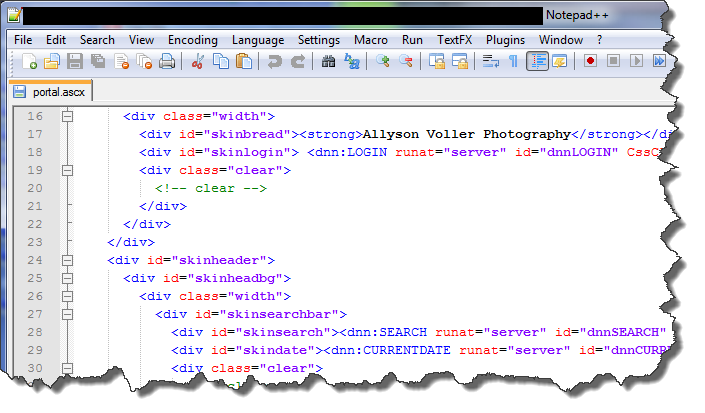
There really is ONE main editing program I use to edit all of these file types, Notepad++. I do use Microsoft Visual Web Developer Express 2010, also free, but it demands much more when it comes to system resources, the install is long and arduous, and so it does not qualify for either light-weight or fast install. While you CAN use the built-in Notepad app on Windows OS, Notepad++ has so many more features and options that it simply leaves Notepad in the dust.
Notepad++ gives you all of these features.
- Tabbed file browsing – open multiple files in tabs across the top.
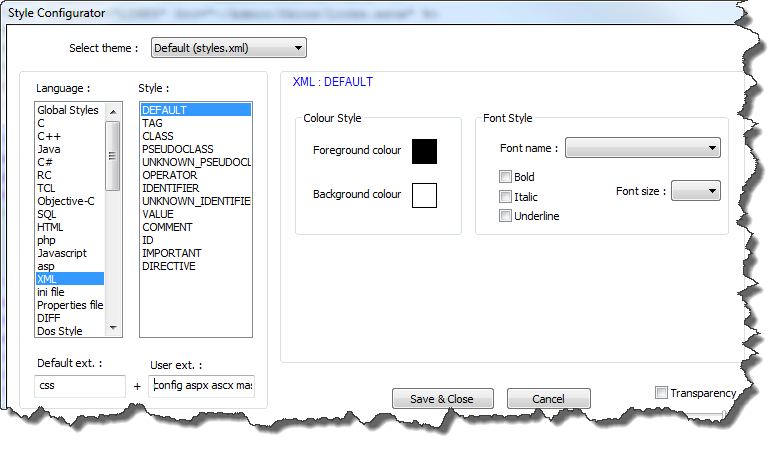
- Syntax highlighting – to enable this for .ascx, .aspx, .config files, open Settings > Style configurator. On the left under Language: choose XML, and on the right under User ext. : type (space delimited, no dots) config ascx aspx – then press Save & Close, and you’ll have highlighted syntax when editing these files – See Figure 2 below.
- Terrific find and replace options – If you have a small piece of code that needs to be replaced, you can actually use Notepad++ to find and replace within files that are in any directory on your computer, without opening them. This is particularly useful when editing a DotNetNuke skin that has several .ascx files in which you need to change something across the board.
- Pinned recent files to reopen something you closed but need to get back to in a hurry.
- Program updates from within the application. Check for updates and automatically download/upgrade on the fly!
- Loads of customizations, down to the color scheme, recording your own macros, file extension attribution, and more.
Figure 2
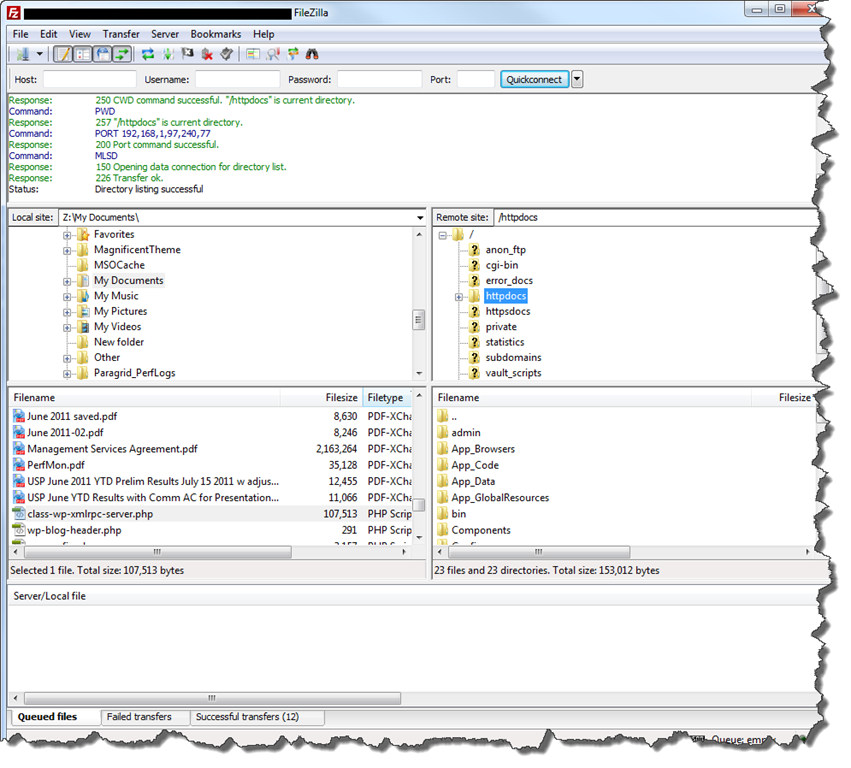
The “other” main tool that I have to say is indispensible for me is Filezilla. Filezilla is a free FTP (File Transfer Protocol) application that allows the user to transfer files to and from their web server using a Graphic User Interface. While it doesn’t really “edit” code, I consider it one of my two bare bones utilities because most of the time when I edit files, I’m immediately transferring them to a test or production server over the WWW. Filezilla gives you the following sweet options:
- Save each FTP connection so you can quickly connect to your sites in the future
- Drag and drop transfer between your local computer and the remote server
- Overwrite confirmation pop-up that prevents you from hosing files by mistake
Filezilla Screenshot
With these two tools in your editing toolbox, you can edit most, if not all, file types you’ll come across when you need to modify basic code in DotNetNuke skins, containers and modules. Happy editing!
I like Filezilla and Notepad++ is good but I think I like NoteTab a little better. Mainly because it is programmable (simple script language) and I can include XmodPro tags, OWS tags, etc. into it’s built in libraries.
Hey Greg, thanks for the comment. I have NoteTab Pro and use it for my .txt file edits. Can you configure syntax highlighting in NoteTab?
I see I need to continue growing in my coding skills! XmodPro tags, OWS tags… upper intermediate here I come! 🙂
I recommend changing the %appdata% default langs.xml file to add CONFIG (for the web.config) to the XML default type.
Helps when opening web.config files and having it automatically color coded for XML and not having to change this manually every time.
Jonathan, as far as I know, this is a one time modification in Notepad++. I have only had to do this one time. Maybe I’m not following what you’re saying.
Right, we’re talking the same thing. I just do it through the langs.xml file instead of the GUI.
Using Notepad++ to modify Notepad++. Consider your mind BLOWN! hehe
Not sure on the syntax highlighting question. I use a combination of Notetab Pro and Dreamweaver (only because I already have it – part of Creative Suite) depending on what I’m doing.